> ## Documentation Index
> Fetch the complete documentation index at: https://docs.coaxial.ai/llms.txt
> Use this file to discover all available pages before exploring further.
# Dashboard
> Learn how to use the Coaxial Dashboard
## Login/Registration
Currently, we do not support public access to Coaxial. If you would like to use Coaxial, please contact our [team](mailto:team@coaxial.ai). Or, schedule a [demo](https://calendly.com/team-coaxial/30min).
When you onboard Coaxial, you will be given email/password credentials which you can use to log into the Dashboard.
## Auth Integration
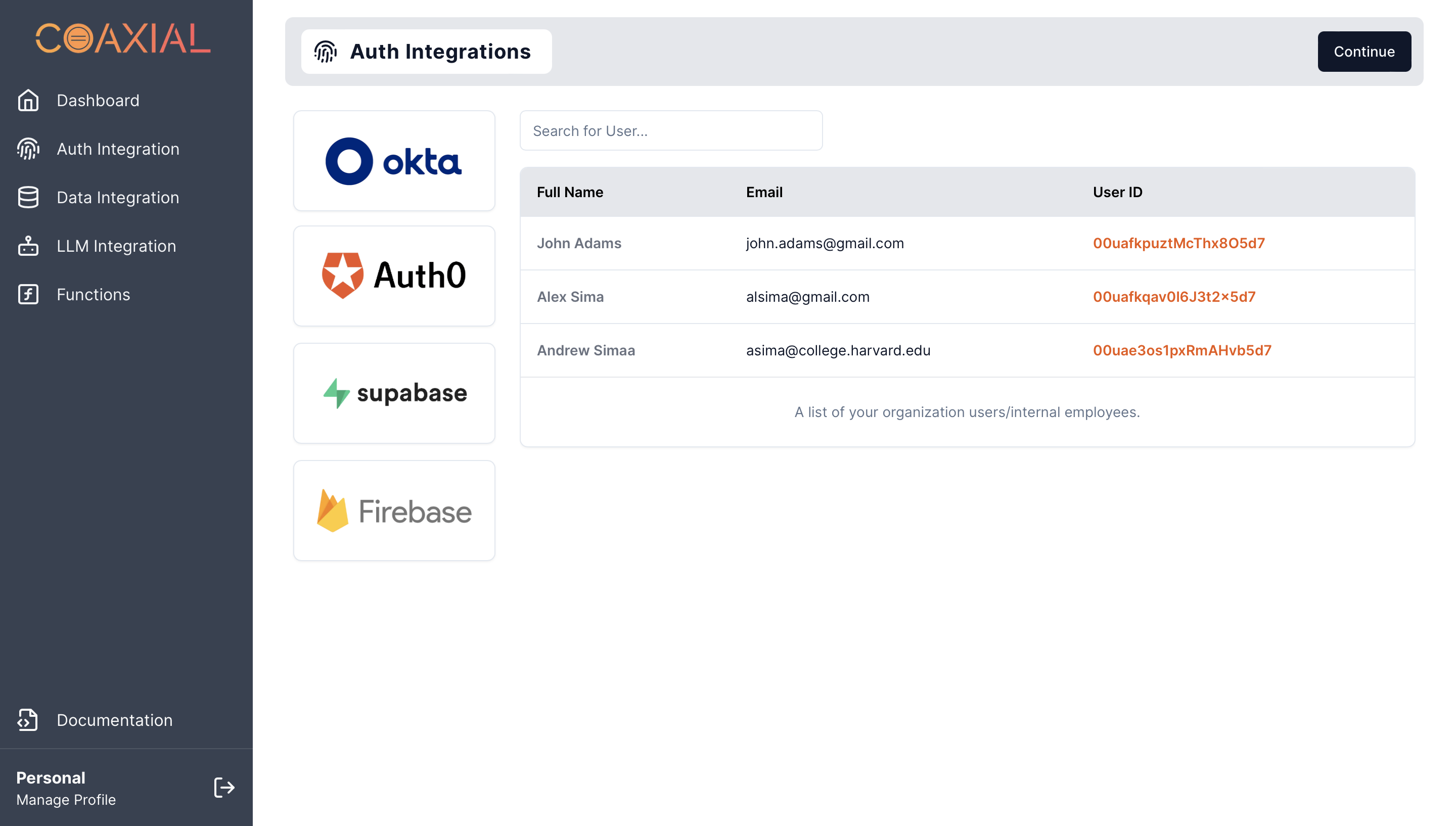
To integrate your auth users, navigate to the "Auth Integration" tab. Select an integration from the left and provide the necessary info (client/API keys, org IDs, etc.)
 ## Data Integration
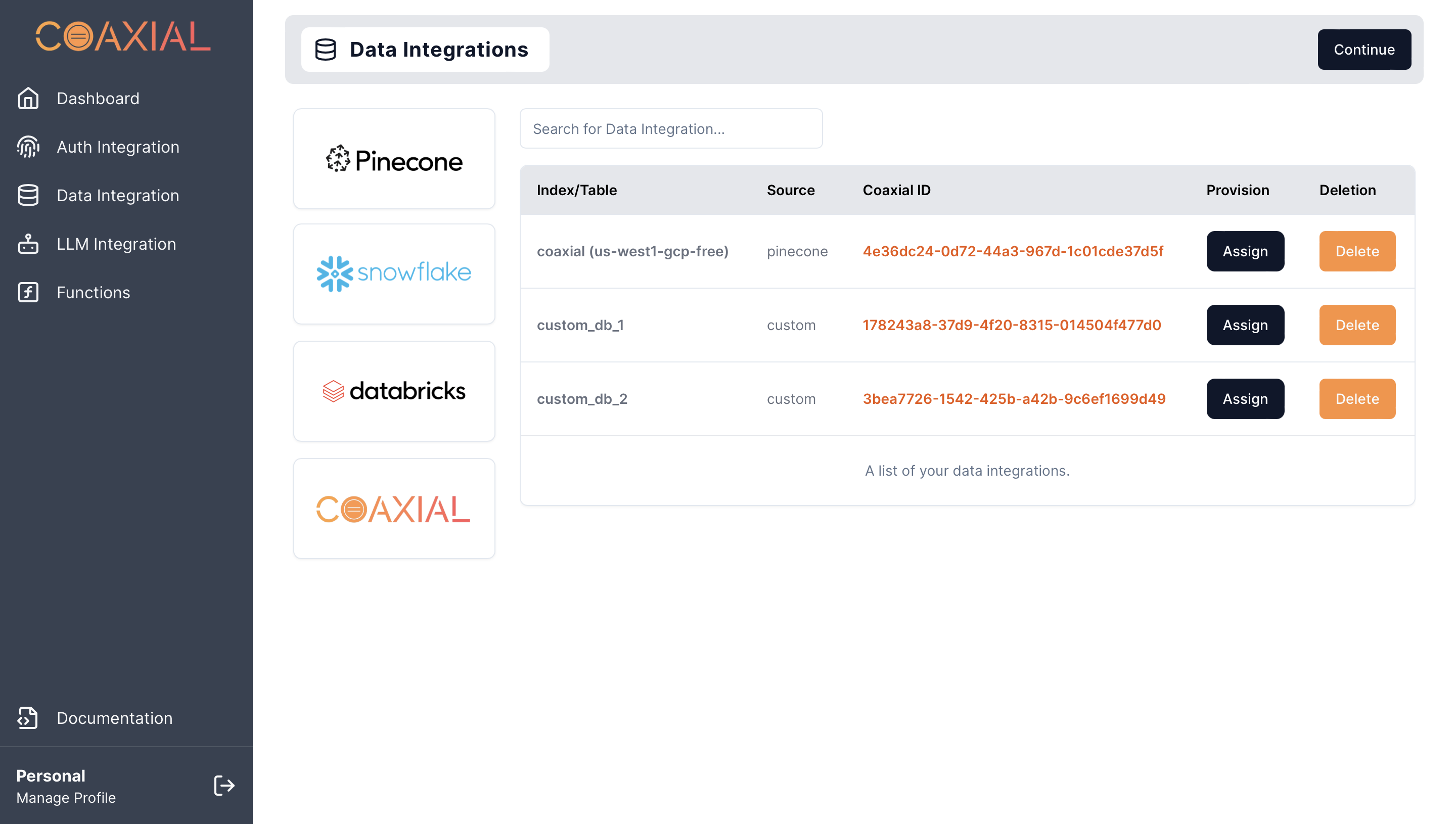
To integrate your data sources, navigate to the "Data Integration" tab. Select an integration from the left and provide the necessary info (client/API keys, index name, etc.)
If you wish, you can provision users with access to data integrations using the "Assign" button or remove datasets with the "Delete" button.
## Data Integration
To integrate your data sources, navigate to the "Data Integration" tab. Select an integration from the left and provide the necessary info (client/API keys, index name, etc.)
If you wish, you can provision users with access to data integrations using the "Assign" button or remove datasets with the "Delete" button.
 ## Model Integration
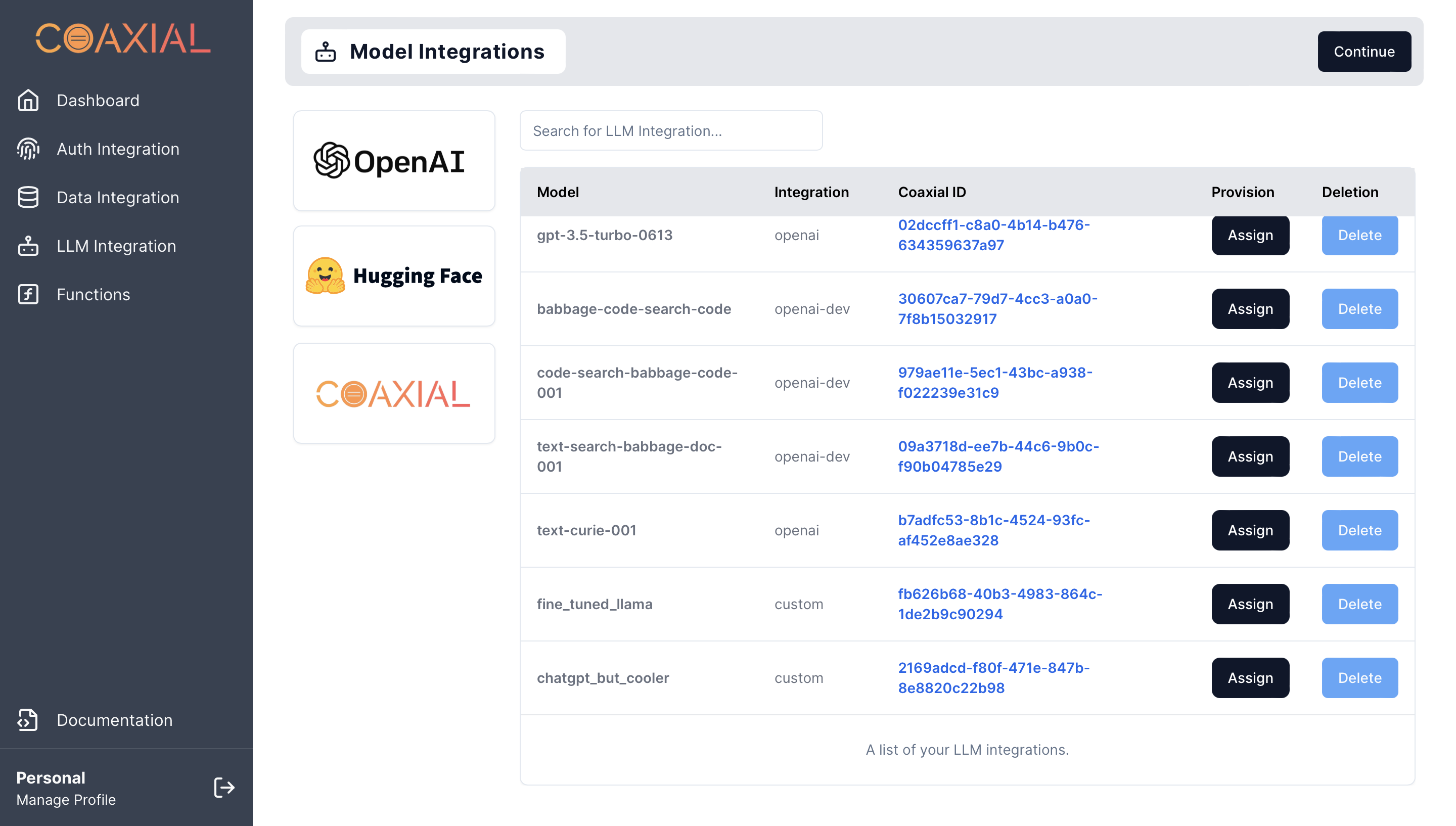
To integrate your models, navigate to the "Model Integration" tab. Select an integration from the left and provide the necessary info (client/API keys, model name, etc.)
If you wish, you can provision users with access to models using the "Assign" button or remove models with the "Delete" button.
## Model Integration
To integrate your models, navigate to the "Model Integration" tab. Select an integration from the left and provide the necessary info (client/API keys, model name, etc.)
If you wish, you can provision users with access to models using the "Assign" button or remove models with the "Delete" button.
 ## Functions
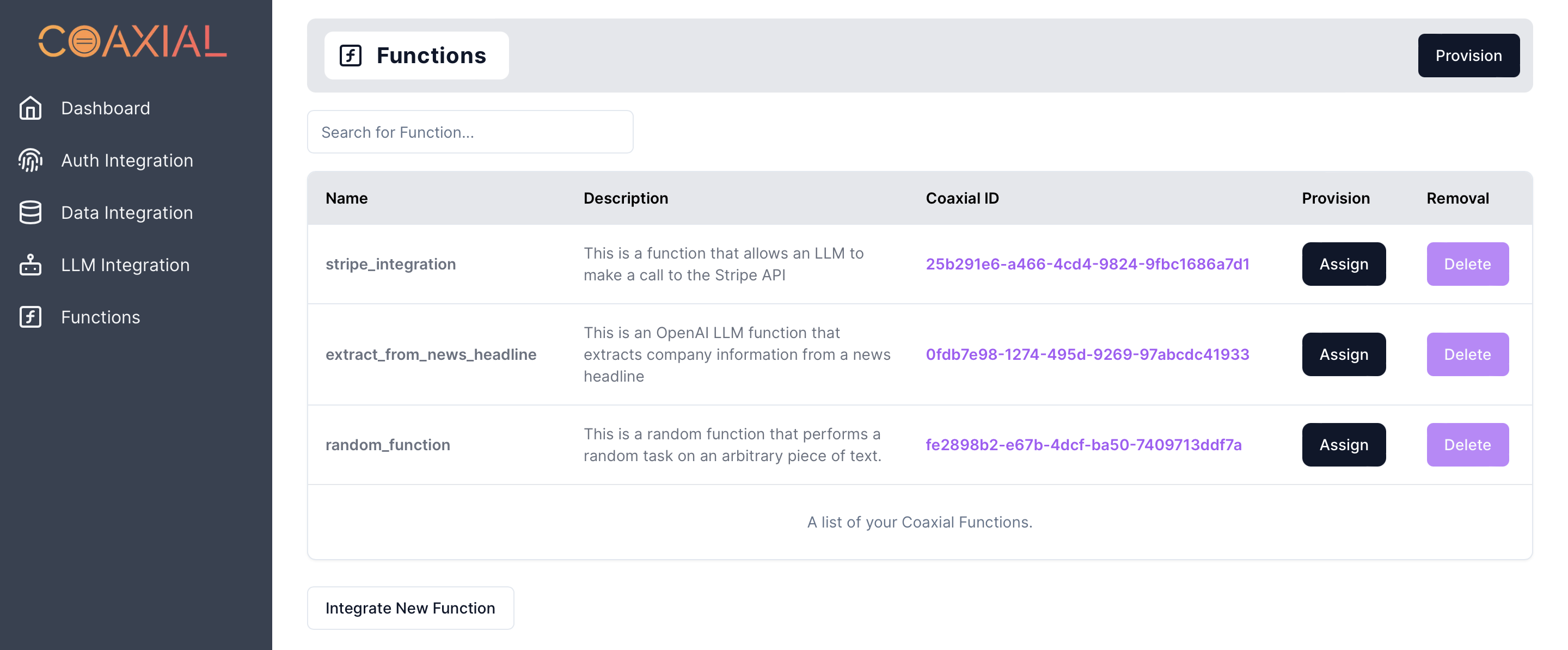
To integrate your functions, navigate to the "Functions" tab. Click the "Integrate New Function" button below the table (we currently only require the function name and description).
If you wish, you can provision users with access to functions using the "Assign" button or remove functions with the "Delete" button.
## Functions
To integrate your functions, navigate to the "Functions" tab. Click the "Integrate New Function" button below the table (we currently only require the function name and description).
If you wish, you can provision users with access to functions using the "Assign" button or remove functions with the "Delete" button.
 ## Access Controls
### Provisioning
To provision users with a resource, either navigate to the resource tab or provision from the "Dashboard" tab.
## Access Controls
### Provisioning
To provision users with a resource, either navigate to the resource tab or provision from the "Dashboard" tab.
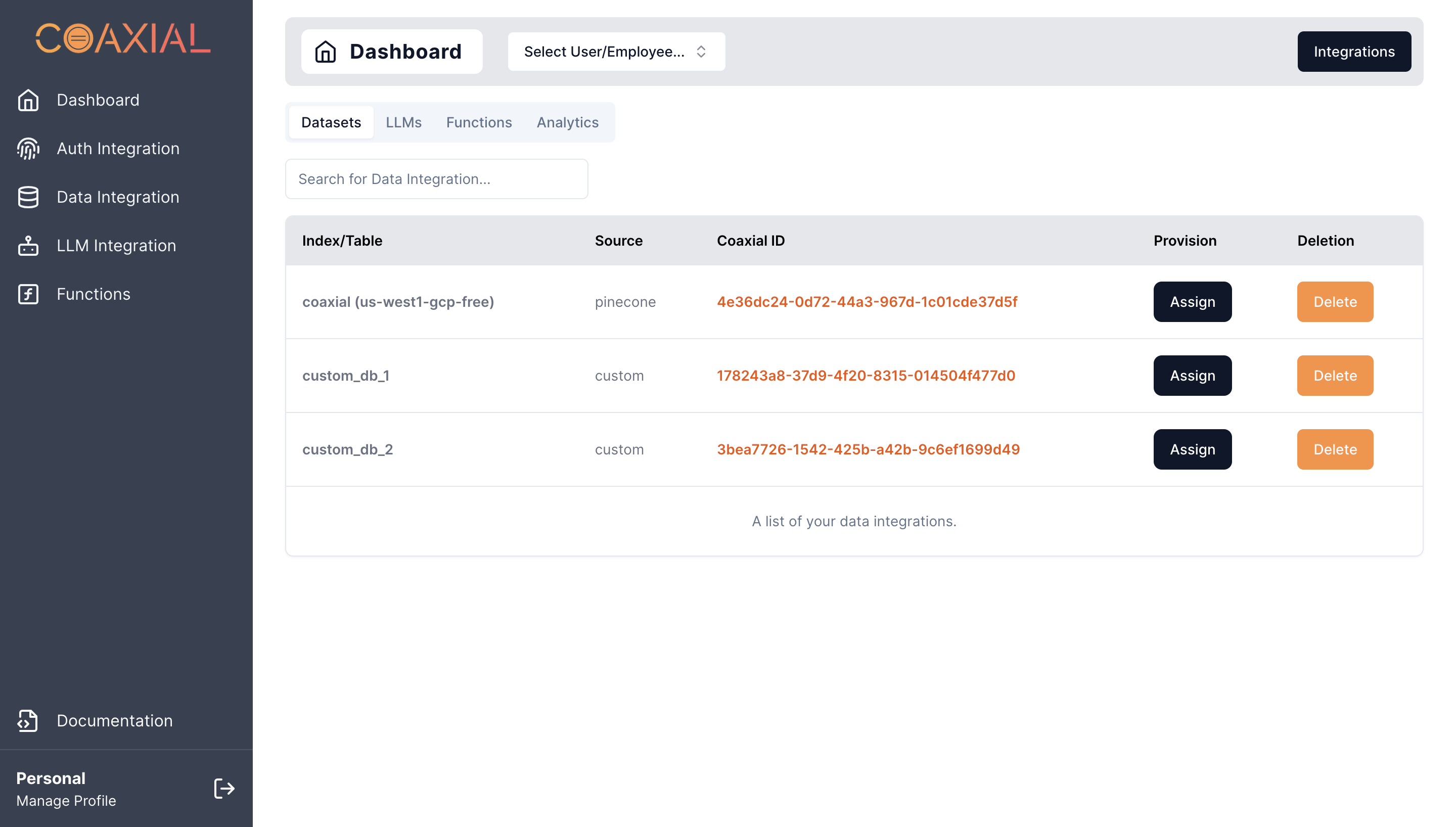 Select the appropriate table to assign resources to users.
### De-provisioning
To revoke access to resources, navigate the "Dashboard" tab. Above, you will see a menu that allows you to select a user from your organization.
Select the appropriate table to assign resources to users.
### De-provisioning
To revoke access to resources, navigate the "Dashboard" tab. Above, you will see a menu that allows you to select a user from your organization.
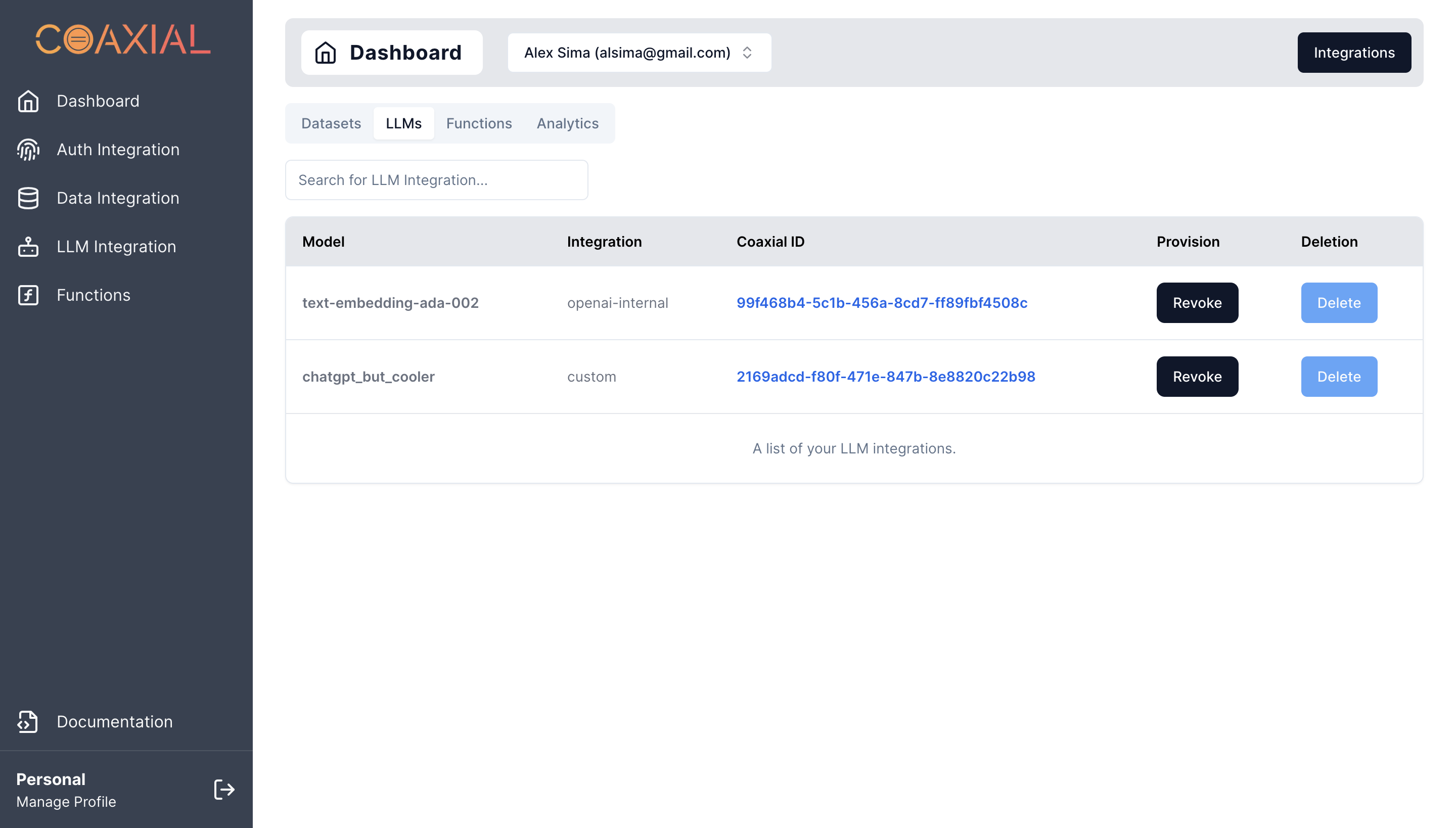 After picking a user, you will have the option to revoke access to specific resources (based on the table you've selected).